
Tech
151 ETB Explained: Meaning, Uses, and Complete Guide (2026)


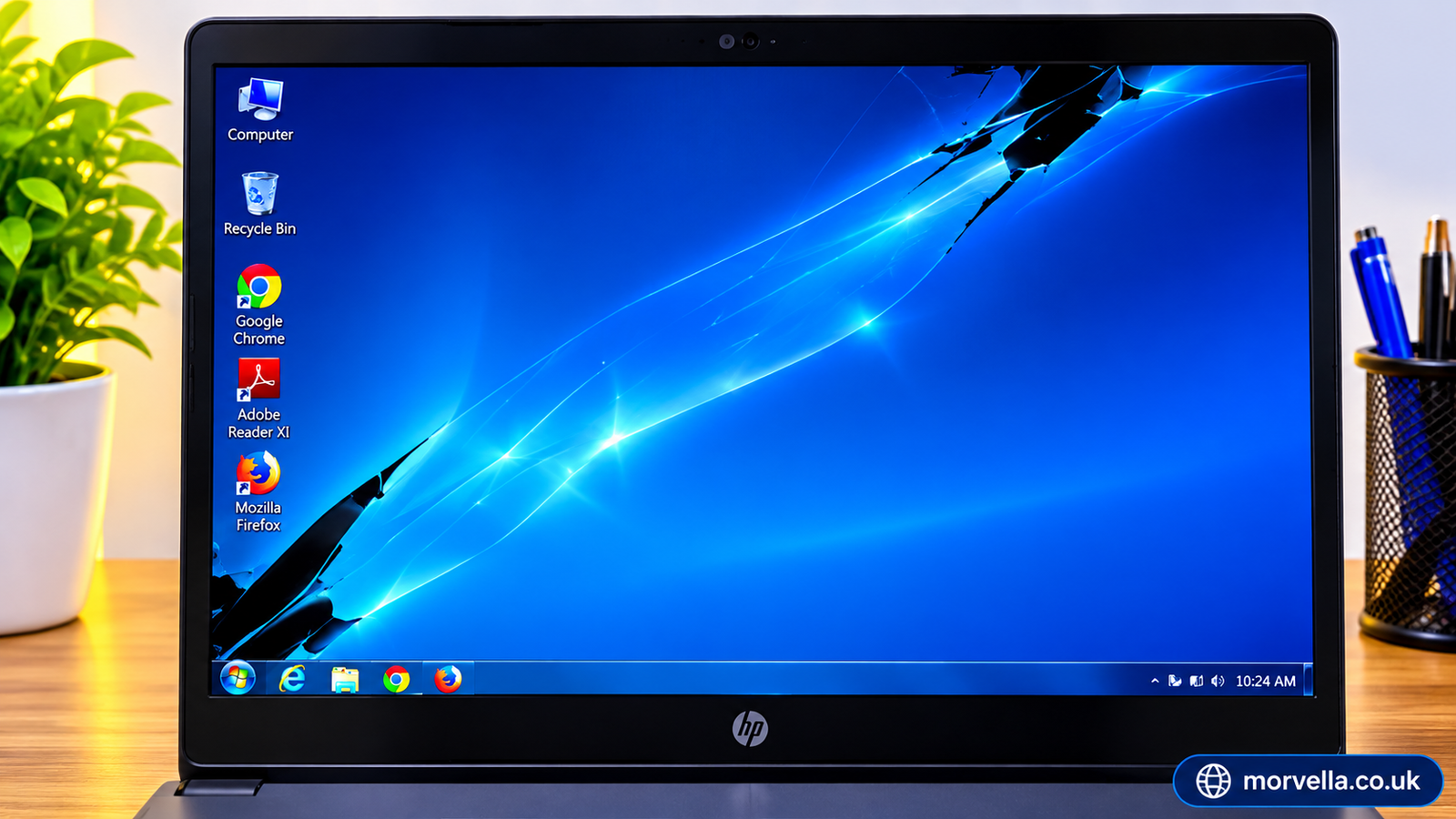
Lines appearing on a laptop display can make it difficult to read text, watch videos, work, or enjoy games. These lines may appear vertically, horizontally, or as colored patterns across the screen. Sometimes, they indicate a temporary software problem, while in other cases, they point to damaged display hardware.
If you notice lines on your laptop screen, you should identify the cause before spending money on repairs. This guide explains the common reasons, practical troubleshooting methods, repair options, and ways to prevent the problem from happening again.
What Causes Lines on a Laptop Screen?
Several hardware and software problems can cause unwanted lines to appear on a laptop display. Identifying the source is important because different problems require different solutions.
Common causes include:
- Damaged LCD panel: Physical pressure, accidental drops, or impacts can damage the display and create permanent lines.
- Loose display cable: A damaged or improperly connected internal display cable can interrupt the video signal.
- Outdated graphics drivers: Incompatible or corrupted drivers can cause visual glitches and display abnormalities.
- Graphics processing problems: A malfunctioning GPU or related hardware can produce distorted images.
- Overheating: Excessive heat can contribute to hardware instability and display problems.
- Liquid damage: Moisture entering the laptop can affect internal display components and electrical connections.
Not every display issue requires a screen replacement. Software-related problems may be resolved through updates or driver troubleshooting, whereas physical damage usually requires professional repair.
Different Types of Lines on a Laptop Display
Understanding the appearance of the lines can help you identify the possible cause. Pay attention to their direction, color, location, and whether they remain visible after restarting the device.
Vertical Lines
Vertical lines run from the top to the bottom of the display. They may appear as thin colored stripes, dark bands, or multiple lines across the screen.
Possible causes include a damaged LCD panel, a faulty display connection, or graphics-related problems. If these lines remain visible during startup, the issue may involve the display hardware.
Horizontal Lines
Horizontal lines extend from one side of the screen to the other. They can appear as single colored stripes, repeated patterns, or flickering bands.
These problems may be associated with the display panel, video signal, graphics hardware, or software drivers. If they appear suddenly after a software update, checking the graphics driver is a reasonable first step.
Colored Lines
Red, green, blue, purple, or white lines can indicate a problem with the display signal or panel.
If the colors remain in the same position regardless of the application being used, the display hardware should be inspected. However, a graphics driver issue can sometimes produce similar symptoms.
Flickering Lines
Flickering lines appear and disappear repeatedly. They may become more noticeable when changing screen brightness, opening applications, or moving the laptop lid.
Possible causes include graphics driver issues, an unstable display connection, or a failing screen component. Avoid repeatedly adjusting or pressing the display to test it.
How to Fix Lines on a Laptop Screen
Before visiting a repair shop, try these safe troubleshooting steps. They can help determine whether the issue is related to Windows, graphics drivers, or physical display components.
1. Restart Your Laptop
Restarting your laptop is one of the simplest ways to troubleshoot temporary display problems.
Save your work, close open applications, and select Restart from the Windows power menu. Once the laptop starts again, check whether the lines are still visible.
If the problem disappears, a temporary software or graphics issue may have caused it. If the lines remain, continue with the following steps.
2. Update Your Graphics Drivers
Outdated or corrupted graphics drivers can cause visual problems, including flickering, distorted images, and display abnormalities.
Follow these steps to check for driver updates:
- Right-click the Windows Start button.
- Open Device Manager.
- Expand the Display adapters section.
- Right-click your graphics device.
- Select Update driver.
- Choose Search automatically for drivers.
- Follow the instructions and restart your laptop.
You can also download compatible drivers directly from your laptop manufacturer’s official support website.
3. Check Your Laptop With an External Monitor
Connecting an external monitor is one of the most useful ways to identify whether the problem is limited to the built-in display.
Follow these steps:
- Connect your laptop to an external monitor or television using HDMI or another supported display connection.
- Turn on the external display.
- Select the correct input source.
- Check whether the external display shows the same lines.
If the external monitor displays normally, the built-in screen or its connection may be responsible.
If the external monitor also shows lines, investigate the graphics driver, GPU, or other system hardware. This test helps narrow down the cause but does not identify every possible hardware fault.
4. Check for Physical Screen Damage
Carefully inspect the display for cracks, pressure marks, dark patches, unusual discoloration, or signs of liquid damage.
Physical damage can occur even when the outer glass or surface looks mostly normal. Internal LCD components may be damaged by pressure or impact.
If you notice cracks, spreading black areas, or permanent colored lines, stop pressing or bending the display. A qualified technician should inspect it.
5. Update Windows
Windows updates can include compatibility improvements, security fixes, and driver updates that may help resolve certain display problems.
To check for available updates:
- Open Windows Settings.
- Select Windows Update.
- Click Check for updates.
- Install available updates.
- Restart your laptop when prompted.
Always save important work before installing updates. If the problem started immediately after a particular update, consider checking the driver version or available rollback options.
6. Check Whether the Lines Appear During Startup
Another useful diagnostic method is checking the display before Windows loads.
Restart your laptop and observe the manufacturer’s logo or BIOS screen. The exact method for entering BIOS depends on the laptop brand and model.
If the lines are visible before Windows starts, a Windows setting or application is less likely to be responsible. Hardware inspection may be necessary.
However, this test alone cannot identify whether the panel, cable, or graphics hardware is defective.
Can a Damaged Laptop Screen Be Repaired?
Yes, a damaged laptop display can often be repaired, but the correct solution depends on the faulty component.
If the issue comes from a loose or damaged display cable, a technician may be able to repair or replace that connection. If the LCD panel itself is damaged, replacing the screen assembly may be necessary.
Software-related problems generally do not require physical repairs. Updating drivers, correcting software settings, or resolving compatibility issues may be enough.
Before approving a repair, ask the technician to identify the actual faulty component. This helps avoid replacing an expensive screen when the problem comes from another part.
When Should You Replace Your Laptop Screen?
Screen replacement becomes necessary when the display panel has physical damage or a confirmed internal failure that cannot be repaired reliably.
Consider professional replacement if you notice:
- Permanent vertical or horizontal lines.
- Large black or colored patches.
- Visible cracks or internal liquid damage.
- A display that flickers continuously.
- Areas of the screen that no longer show images.
- Distorted colors that remain after software troubleshooting.
Choose a replacement panel that is compatible with your laptop’s exact model. Screen size, resolution, connector type, refresh rate, and mounting design should be checked before purchasing a replacement.
Using an incompatible panel can cause installation problems or prevent the display from working correctly.
How to Prevent Laptop Display Problems
Taking care of your laptop can reduce the risk of accidental screen damage and other display-related problems.
Here are some practical precautions:
- Avoid applying pressure: Never press the center of the display or place heavy objects on the closed laptop.
- Clean carefully: Use a soft microfiber cloth and suitable screen-cleaning products.
- Protect your laptop: Use a padded laptop bag when carrying your device.
- Keep liquids away: Avoid placing drinks near your laptop to reduce the risk of accidental spills.
- Maintain proper ventilation: Keep the cooling vents clear and avoid using the laptop on surfaces that block airflow.
- Install compatible updates: Keep Windows and graphics drivers updated through trusted sources.
- Open and close carefully: Hold the laptop by its base and avoid twisting or pulling the display.
These habits help protect the screen and other internal components from unnecessary damage.
Frequently Asked Questions (FAQs)
Why are there lines on my laptop screen?
Lines can appear because of a damaged LCD panel, a loose display cable, graphics driver problems, or GPU-related faults. The appearance and timing of the lines can help identify the possible cause.
Can software problems cause lines on a laptop display?
Yes. Corrupted or incompatible graphics drivers and certain software conflicts can cause visual glitches. Updating or reinstalling the correct graphics driver may resolve these issues.
Do vertical lines mean my laptop screen is damaged?
Not always. Vertical lines can result from display hardware problems or graphics-related issues. Testing an external monitor and checking whether the lines appear during startup can help narrow down the cause.
Can I fix display lines without replacing the screen?
Sometimes. If the issue is caused by a software problem or a faulty driver, troubleshooting may solve it. However, a physically damaged LCD panel generally requires replacement.
Why do lines appear when I move my laptop screen?
Lines that change when the display lid moves may indicate a damaged or unstable internal display cable or a failing screen connection. Avoid repeatedly moving the lid to reproduce the problem and arrange a professional inspection.
Is it safe to continue using a laptop with display lines?
If the laptop works normally and there are no signs of overheating, electrical damage, or physical hazards, you may be able to use it temporarily. However, back up important files and arrange an inspection if the lines persist or become worse.
How can I tell whether the problem is the screen or graphics card?
Connect an external monitor. If the external display is normal, the built-in screen or its connection may be responsible. If both displays show the same problem, the graphics hardware or software may be involved.
Conclusion
Lines on a laptop screen can result from several problems, including damaged display panels, faulty connections, outdated graphics drivers, and graphics hardware issues. The best approach is to identify the cause before attempting repairs.
Start with simple troubleshooting methods, such as restarting the laptop, updating graphics drivers, checking Windows updates, and connecting an external monitor. If the lines remain visible during startup or physical damage is present, consult a qualified technician.
Understanding the problem early can help you choose the right repair, avoid unnecessary expenses, and keep your laptop working reliably.
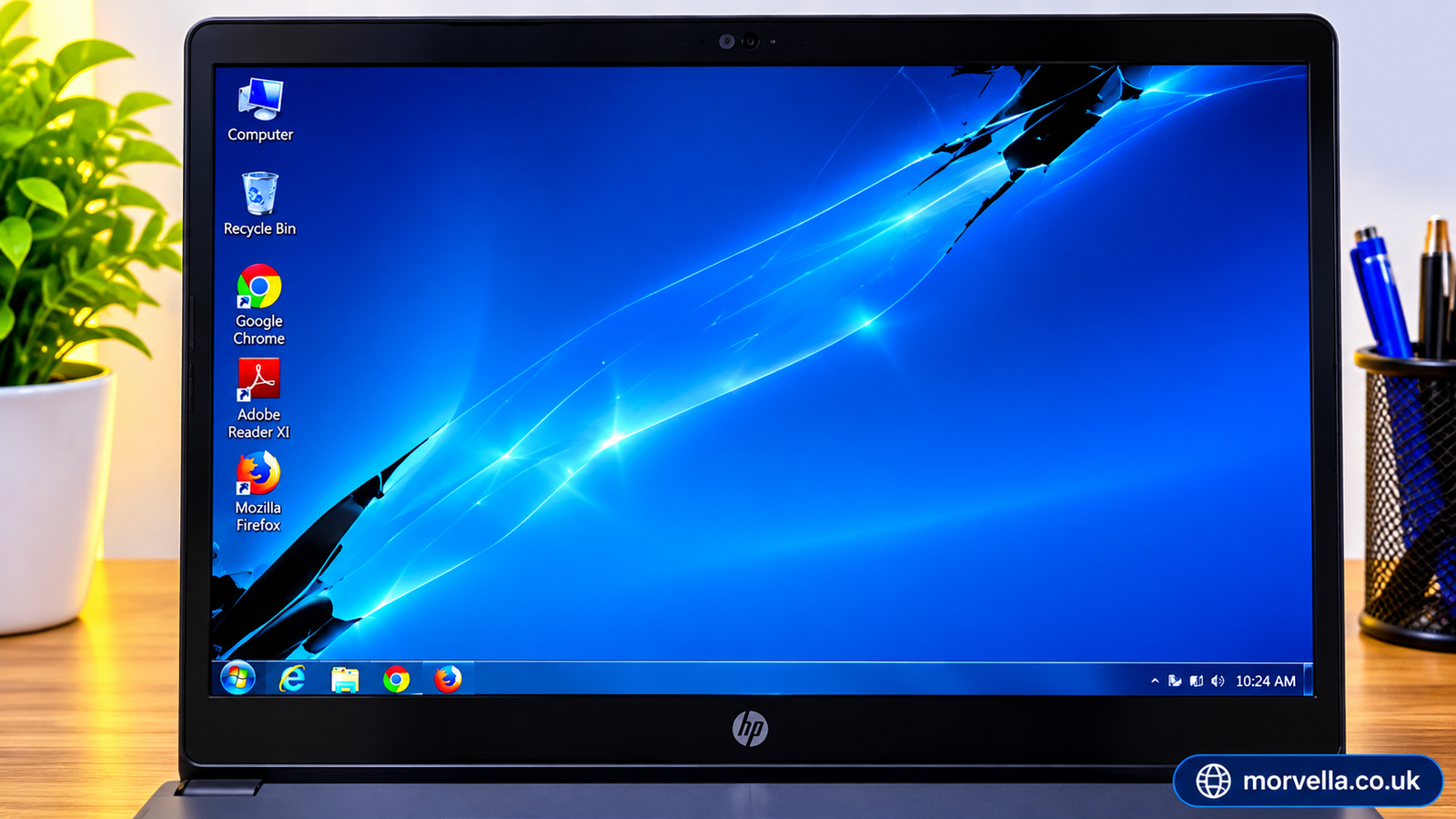
Patches on a laptop screen can appear as dark spots, bright areas, colored marks, shadows, or uneven discoloration. They can make text difficult to read, affect images, and reduce the overall viewing experience. Some patches are caused by software or display settings, while others indicate physical damage to the screen.
The best way to deal with this problem is to identify what type of patch is appearing and determine whether it comes from the display panel, graphics software, pressure, or another hardware issue. Understanding the cause helps you choose the right solution without spending money on unnecessary repairs.
What Are Patches on a Laptop Screen?
Screen patches are unusual areas on a laptop display that look different from the surrounding pixels. They may appear as small dots, cloudy marks, colored areas, dark shadows, or bright spots. Their appearance and location can provide useful clues about the underlying problem.
Some patches remain in the same position regardless of what you display, while others appear only under certain conditions. For example, a pressure mark may look like a colored cloud, whereas backlight bleeding usually appears as uneven brightness near the edges of an LCD screen.
Not every display patch means your laptop needs a new screen. However, persistent discoloration, spreading marks, and visible physical damage should be investigated before the problem becomes more serious.
Common Causes of Display Patches
Several issues can cause unusual marks or discoloration on a laptop display. Identifying the correct cause is important because software problems and physical screen damage require different solutions.
1. Physical Pressure on the Screen
Pressure is one of the common reasons for colored or cloudy marks on laptop displays. Placing heavy objects on a closed laptop, pressing the screen while cleaning, or carrying a laptop in a tightly packed bag can put stress on the display panel.
In some cases, pressure can damage the internal LCD layers and create pink, yellow, orange, or multicolored patches. These marks may remain visible even after restarting the computer because the problem is physical rather than software-related.
2. Dead or Stuck Pixels
A laptop display contains millions of tiny pixels that work together to produce images. A dead pixel remains unlit, often appearing as a small black dot, while a stuck pixel may remain illuminated in one color, such as red, green, or blue.
A few isolated pixel defects may be difficult to notice during everyday use. However, multiple defective pixels in one area can become distracting, especially when viewing documents, videos, or images with solid backgrounds.
3. Liquid Damage
Liquid entering a laptop display can cause discoloration, dark areas, cloudy patches, or unusual patterns. Even a small amount of moisture can affect sensitive display components if it reaches the internal layers.
Liquid damage may become more noticeable over time, particularly when the laptop is exposed to moisture repeatedly. If liquid has entered the screen, turn off the laptop, disconnect its charger, and arrange a professional inspection rather than attempting to heat or open the display yourself.
4. Backlight Bleeding and Bright Spots
Backlight bleeding occurs when light from an LCD display’s backlight escapes unevenly around the edges or through certain areas of the panel. It is usually easier to notice when displaying a dark image in a dim room.
Some LCD displays naturally show a small amount of uneven brightness. However, clearly visible bright spots or hot spots during normal room lighting may indicate a display issue that requires professional evaluation.
5. Graphics Driver or Display Settings Problems
Not every unusual screen appearance comes from damaged hardware. Outdated graphics drivers, incorrect color profiles, display settings, or software conflicts can sometimes produce distorted colors and other visual problems.
These issues may affect the entire display or appear only when using particular applications. If the problem started after a Windows update or graphics driver installation, checking the driver and display settings is a sensible first step.
How to Fix Patches on Laptop Screen
Before paying for a replacement display, perform a few basic checks. These steps can help you identify whether the issue is software-related or caused by physical damage.
Step 1: Restart Your Laptop
Restarting your laptop is a simple first troubleshooting step. Temporary graphics errors or software conflicts can sometimes disappear after a fresh restart.
Save your work, close open applications, and restart the computer. Once it starts again, check whether the marks are still visible on the desktop and in different applications.
If the patches remain in exactly the same position, continue with the next troubleshooting steps.
Step 2: Check the Screen Against Different Backgrounds
Open images or documents with solid white, black, red, green, and blue backgrounds. Examine the display carefully to see whether the marks remain visible across different colors.
This test can help you distinguish small pixel defects from larger discoloration or brightness problems. Take a photograph of the display with another device so you can compare the appearance later.
Avoid pressing the affected area during testing because additional pressure may make physical damage worse.
Step 3: Update Your Graphics Drivers
An outdated or faulty graphics driver can sometimes cause display abnormalities. Updating the driver from your laptop manufacturer’s official support website is a useful troubleshooting step.
On Windows, follow these instructions:
- Right-click the Start button.
- Open Device Manager.
- Expand the Display adapters section.
- Right-click your graphics device.
- Select Update driver.
- Follow the instructions to check for an available update.
You can also visit the official support website for your laptop brand to find drivers designed for your specific model.
Step 4: Check the Display Using an External Monitor
Connecting your laptop to an external monitor or television can help identify where the problem is coming from. Use a compatible HDMI, USB-C, or DisplayPort connection, depending on your laptop.
If the external display looks normal but the built-in screen still shows patches, the internal display panel or its connection may be responsible. If both screens show similar abnormalities, investigate the graphics driver, operating system, or graphics hardware.
This test is not a complete hardware diagnosis, but it provides a useful starting point.
Step 5: Run Your Laptop’s Display Diagnostics
Some manufacturers provide built-in display tests that help identify screen hardware problems. For example, supported Dell laptops can run an LCD built-in self-test by holding the D key while pressing the Power button.
The test displays several solid colors, making it easier to identify abnormal spots, lines, and discoloration. The exact procedure depends on your laptop model, so check the manufacturer’s instructions before using it.
If the same marks appear during a hardware display test, professional inspection may be necessary.
Step 6: Contact a Professional Technician
If the marks remain after basic troubleshooting, the display may have physical damage. A technician can inspect the LCD panel, display cable, and other related components to determine what needs repair.
If the panel has pressure damage, cracks, or permanent internal discoloration, replacing the screen may be the only reliable solution. Always request a repair estimate and confirm that the replacement panel is compatible with your laptop model.
How to Prevent Screen Patches
Preventing display damage is easier and generally less expensive than replacing a laptop screen. A few simple habits can help protect your display during everyday use.
- Avoid putting pressure on the display: Never press the screen with your fingers or place heavy objects on a closed laptop.
- Use a suitable laptop bag: Choose a padded bag that protects the computer without squeezing its display.
- Keep objects away from the keyboard: Remove pens, USB drives, earphones, and other small objects before closing the lid.
- Clean the screen carefully: Use a clean microfiber cloth and follow the manufacturer’s cleaning instructions. Avoid excessive moisture and harsh chemicals.
- Protect your laptop from liquids: Keep drinks away from the computer and avoid using it in places where water can easily reach the display.
- Handle the lid properly: Open and close the laptop gently, holding it in a way that avoids unnecessary twisting or bending.
- Maintain proper ventilation: Keep the cooling vents clear and avoid exposing the laptop to excessive heat.
These precautions reduce the risk of accidental pressure damage, contamination, and other problems that can affect display performance.
When Should You Replace a Laptop Screen?
Not every screen problem requires replacement. Software-related display abnormalities may improve after updating drivers, correcting settings, or resolving a temporary system issue.
However, a damaged LCD panel may need replacement if it has permanent colored patches, spreading dark areas, visible cracks, or large sections that no longer display images correctly.
You should also consider professional repair when the marks become larger, interfere with everyday work, or remain visible during the manufacturer’s hardware diagnostics.
Before approving a replacement, ask a technician to check the display cable and other related components. This helps prevent unnecessary spending on a new panel when another component is responsible.
Frequently Asked Questions
Can patches on a laptop screen disappear on their own?
Some temporary visual abnormalities caused by software or display settings may disappear after restarting the laptop or correcting the settings. However, physical pressure damage, cracked LCD layers, and permanent pixel defects generally do not repair themselves.
Are colored patches a sign of a damaged laptop screen?
Colored patches can indicate physical damage, particularly when they appear as cloudy pink, yellow, or orange areas that remain in the same position. However, software-related color problems are also possible, so testing the display before arranging a replacement is important.
Can I fix screen patches without replacing the display?
Yes, if the problem is caused by graphics drivers, incorrect display settings, or a temporary software issue. However, permanent physical damage to the LCD panel usually requires professional repair or screen replacement.
Is it safe to press a patch to remove it?
No. Pressing, rubbing, or massaging the affected area can cause additional damage to the display layers. Avoid applying pressure and have the screen inspected if the marks remain visible.
How much does laptop screen replacement cost?
The cost depends on the laptop model, screen size, resolution, panel technology, and availability of compatible replacement parts. OLED, touchscreen, and high-refresh-rate displays may cost more than standard LCD panels. Request a quote from a reputable repair provider before making a decision.
Can a laptop screen develop patches without being dropped?
Yes. Pressure from objects inside a laptop bag, closing the lid on a small item, liquid exposure, display aging, or component defects can cause screen abnormalities even when the laptop has not been dropped.
Conclusion
Patches on a laptop screen can result from several causes, including physical pressure, defective pixels, liquid damage, backlight problems, and graphics software issues. The right solution depends on identifying the type of damage rather than trying random fixes.
Start by restarting your laptop, checking different background colors, updating the graphics driver, and testing an external display. If the marks remain visible or appear during hardware diagnostics, consult a qualified technician.
Most importantly, protect your laptop from pressure, moisture, and accidental impacts. Proper handling and regular care can help maintain display quality and reduce the chances of expensive repairs.



 information4 months ago
Justin Billingsley Greene Law: Leadership, Legal Innovation, and Professional Excellence
- study4 months ago
çievri: The Complete Guide for Beginners and Professionals
- Tech5 months ago
Amber the Colour: Meaning, Symbolism, History, Psychology, and Modern Uses
- Sports5 months ago
Basketball Random.GitHub: The Ultimate Guide
- Fashion5 months ago
What Is a Chemise? Complete Guide to Styles, History, and Modern Uses
- Entertainment5 months ago
Basket Random GitHub IO: The Complete Guide to Playing the Fun Physics Basketball Game
- Fashion5 months ago
Corduroy: The Complete Guide to History, Types, Uses, Benefits, Care, and Modern Fashion
- Entertainment5 months ago
Buckner Mansion: The Complete History, Architecture, and Visitor Guide